The cover of Boards of Canada's album Music Has The Right To Children features a deliberately blurred-out face. After Engadget writer Manuviraj Godara ran it through PicsArt's AI image upscaler, the face came out with a pair of eyes that were never there in the first place. This experiment reveals something people often overlook about AI upscaling: it doesn't "restore" lost detail — it makes a statistical guess and paints an entirely new image that just happens to look like the original once scaled back down. Since most human faces have eyes, the model assumed this one should too, and drew them in — even though there wasn't a trace of eyes in the source image.
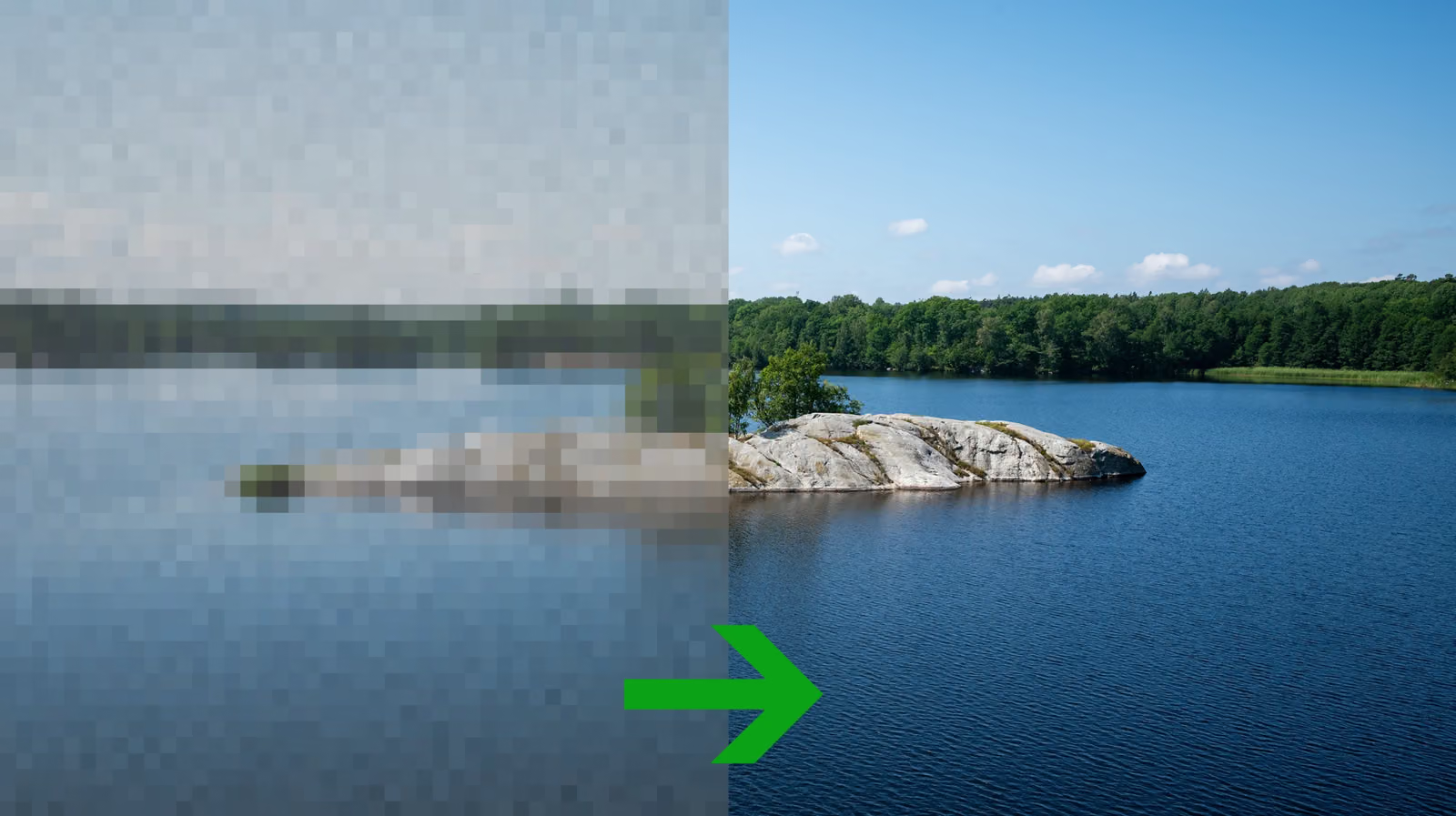
This works nothing like traditional upscaling. Whether it's the image viewer built into your computer or any editing tool, traditional upscaling operates by averaging out the surrounding pixels — the only difference is how many neighboring pixels get referenced and how much weight each one carries. In other words, traditional methods don't actually make a photo sharper; they simply stretch the existing information to fill a larger canvas.
Four Traditional Upscaling Methods, Each With Its Own Pitfalls

Nearest-neighbor upscaling is the only method that skips pixel averaging entirely — it simply duplicates the closest pixel, preserving that original blocky look. It works great for pixel-art illustrations or charts with hard edges, but on regular photos or images with gradients, it produces obvious jagged edges.
Bilinear upscaling averages the four surrounding pixels. There's no more blockiness, but the whole image tends to come out softer, almost slightly out of focus. It's better suited to photos that were already soft to begin with, and not recommended for close-ups or anything where detail needs to be preserved.
Bicubic upscaling references 16 surrounding pixels, weighting the closer ones more heavily, striking a balance between image quality and processing load. It's sharper than bilinear without the jagged edges of nearest-neighbor, making it the safe default for most photos — though it can introduce some halo artifacts. The article also mentions more advanced algorithms like Lanczos, which demand more processing power but don't differ much from bicubic in practice — only worth trying if you're unhappy with your bicubic result.

AI upscaling flips this approach entirely. The model first learns "what plausible detail looks like" from a massive set of training images, then reconstructs an entirely new picture. This lets it noticeably smooth out grain and blur in old photos, making them look cleaner and more saturated — but the tradeoff is that it might invent details that were never in the original, like those added-on eyes. The author's conclusion is blunt: if you need a photo restored with precision, don't hand it over to AI upscaling.
Beyond Upscaling, File Format Decides What You Can Actually Do With the Image
JPEG offers the widest compatibility and small file sizes, making it ideal for storing large photo collections — but it doesn't support transparency, so it's a poor fit for logos or text graphics. PNG is a lossless format that supports transparency and won't lose quality no matter how many times you edit it, making it great for logos, illustrations, and screenshots — though it produces unnecessarily large files for regular photos.
If you're putting photos on a website, Google's WebP format, launched back in 2010, comes in at roughly a quarter the size of PNG and 25% to 34% smaller than JPEG — a difference that directly affects page load speed. And if your main devices are an iPhone and a Mac, Apple states that HEIC files are about half the size of standard JPEGs at comparable quality, and editing them in the Photos app on iPhone even preserves your edit history. The downside is that on Windows, you'll need to install an extra plugin or viewer to open them.