Most of the time, your MacBook doesn't need you to babysit its power management—Apple hands off most of the decision-making to the system automatically. But there are always a few situations where you'll want to take matters into your own hands: when the battery has aged after a few years of use, when you want to make sure it lasts a whole flight before an overseas trip, or when you're simply curious what's actually sucking down power behind that screen. The settings below are buried several layers deep in System Settings, and most people will never click into them in their lifetime—but they genuinely work.
Start with the numbers in Battery Health
Before making any adjustments, check your baseline. Open System Settings > Battery, click the "i" next to Battery Health, and you'll see the current capacity as a percentage of the original factory capacity. 100% means age hasn't dragged down performance yet, and 95% or 90% is still nothing to worry about. Apple's standard is that once it drops below 80%, you should consider a battery replacement—at that point, the system will also pop up a service warning, letting you book a Genius Bar appointment directly.
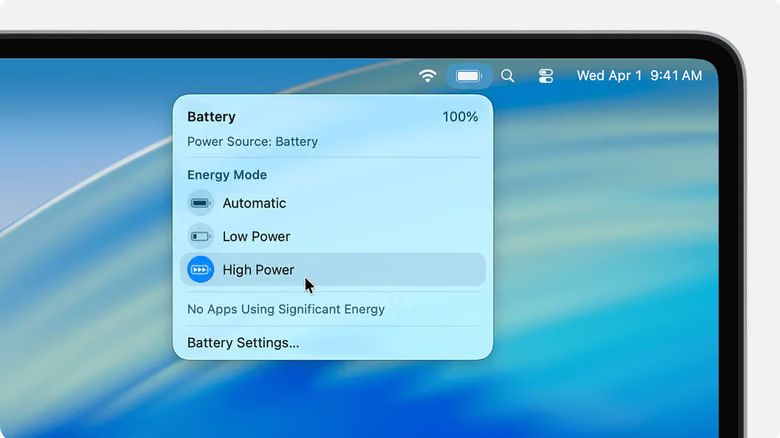
If you want to extend battery lifespan, Optimize Battery Charging in the same menu caps charging at 80%. This won't extend your battery life right now, but it will slow down long-term degradation. If you need a full charge before a long flight, you can temporarily lift this cap directly from the battery icon in the menu bar—the same spot also shows your current Energy Mode and which apps are draining power, making it the handiest real-time dashboard around.
Low Power Mode is the one switch actually worth remembering
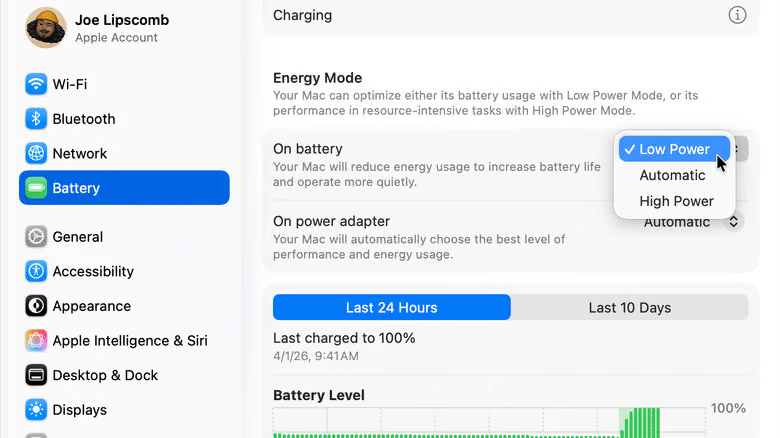
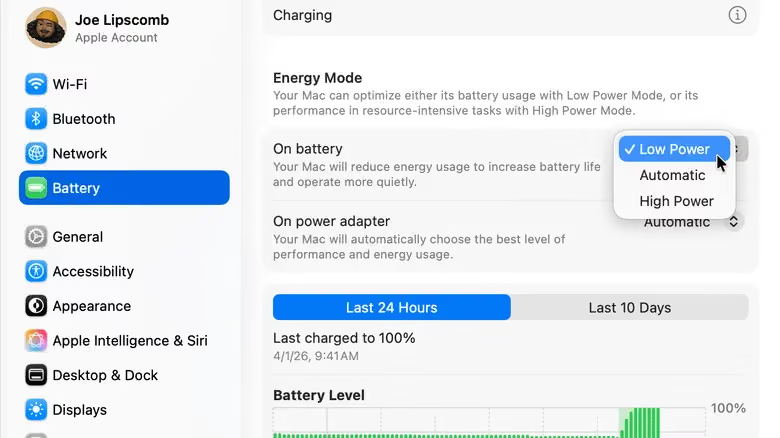
If you only change one setting, make it this one. Energy Mode in System Settings > Battery defaults to Automatic for most people, and that's already the optimal choice for the vast majority of use cases. But on days when your battery has aged or you need to get through a long stretch of work, switching the mode under On Battery to Low Power keeps your MacBook in power-saving mode even when the battery is fully charged. And if you notice your mode got switched to High Power on battery without you realizing it, that's likely why your battery has been draining unusually fast.
A few display-related tweaks are also worth handling while you're at it: turn on Slightly Dim the Display on Battery under Battery > Options; shorten the auto-lock timer in Lock Screen settings to two to five minutes; if streaming video tends to drain your battery fast, turn on Optimize Video Streaming While on Battery, which downgrades HDR to SDR playback when unplugged to save power. Keyboard backlighting doesn't use much power, but if you want to squeeze out every last bit, head to Keyboard settings to lower the brightness and set how long it takes to auto-dim when idle.
Your browser is the real power hog
Compared to the system itself, your browser—especially Chrome—is often a much more noticeable source of battery drain. If you use Safari, go to Websites > Auto-Play and turn off video auto-play, which lets you set Never Auto-Play for individual sites or all sites. If you use Chrome, turn on Energy Saver under Settings > Performance, which cuts background processes and visual effects; it's also worth disabling Preload Pages so the browser doesn't preemptively load pages you might never actually click into. For the truly extreme power-savers, System Settings > Accessibility > Motion lets you disable auto-play for animated images system-wide—this one's really for people who obsess over every last percentage point.
To track down the actual power hogs, open the Energy tab in Activity Monitor. Energy Impact shows real-time power consumption rankings, while 12 hr Power reveals longer-term trends, and the Preventing Sleep column in the same window can catch apps keeping your Mac awake. The App Background Activity list under System Settings > General > Login Items & Extensions is also worth a scan—but before disabling anything, make sure you know which background processes are actually essential to how an app functions, since randomly shutting things off can break features.
Two more easily overlooked spots: Wake for Network Access under Battery > Options should be set to Only on Power Adapter, so your Mac doesn't wake itself up unplugged just to refresh Messages or iCloud; and Privacy & Security > Location Services is worth a quick audit of app permissions too—though apps like Find My or Weather generally shouldn't have location access disabled.
None of these tweaks will double your battery life outright—Apple's own default settings already cover most people's needs. But stack Low Power Mode, a dimmer display, and trimming unnecessary background activity together, and for anyone who genuinely relies on their battery to get through a full day, the difference is still noticeable.