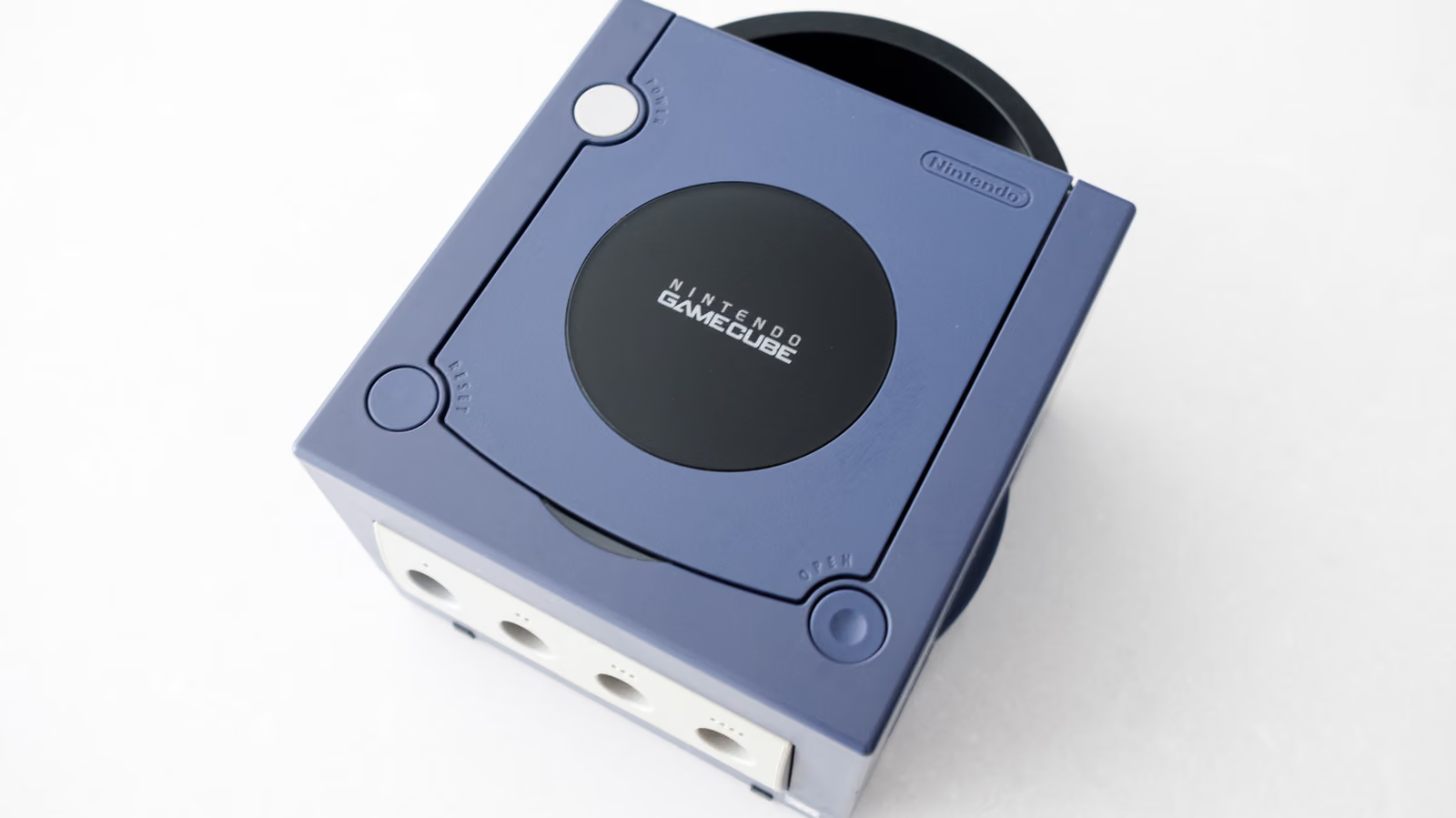
GameCube turns 25 this year, and games like "The Wind Waker" and "Metroid Prime" still hold up remarkably well — the GameCube version of "Resident Evil 4" is arguably even better than the PS2 release. The issue isn't the games, it's the hardware: this console was built for analog CRT TVs, and by 2026, LCD and OLED sets have long since stopped setting aside analog ports for it. The good news is that GameCube is new enough that hooking it up to a modern TV doesn't have to be a huge ordeal — as long as the unit you own is the right one.
Nintendo launched the GameCube in Japan on September 14, 2001, and before production ended in early 2007, it went through a hardware revision aimed at cutting costs. That revision cut a crucial corner: it removed the Digital AV Out port. That port originally let the GameCube output 480p video through a separately sold component cable, and it's now the same connection point used by most GameCube HDMI adapters on the market. The model with that port is the DOL-001; the one without it is the DOL-101. Hooking each one up to a TV is a completely different level of effort.
First, Check If You Have a DOL-001
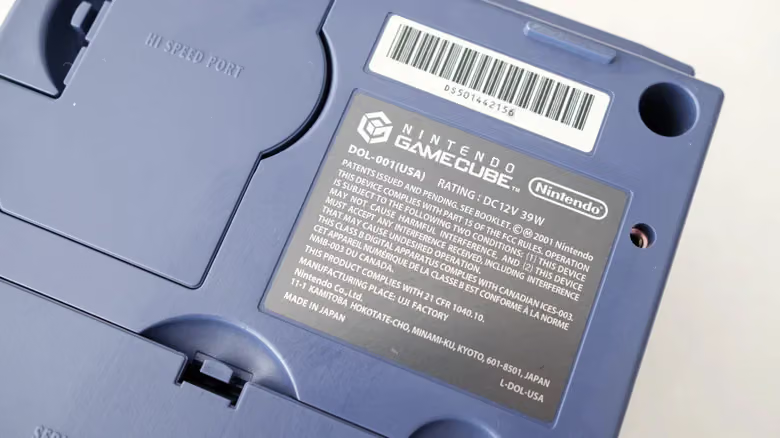
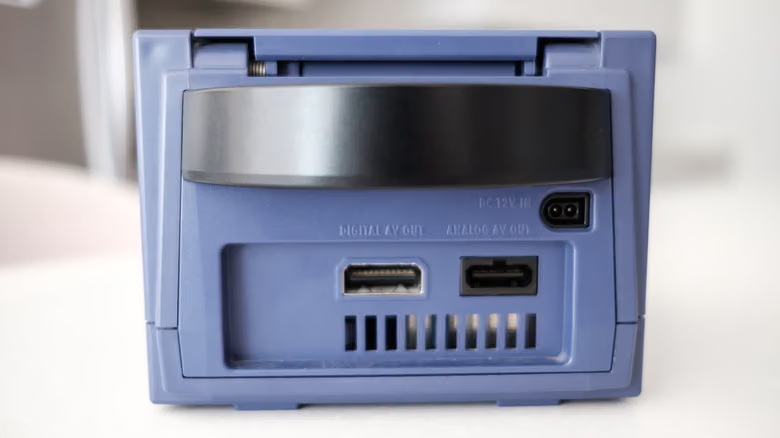
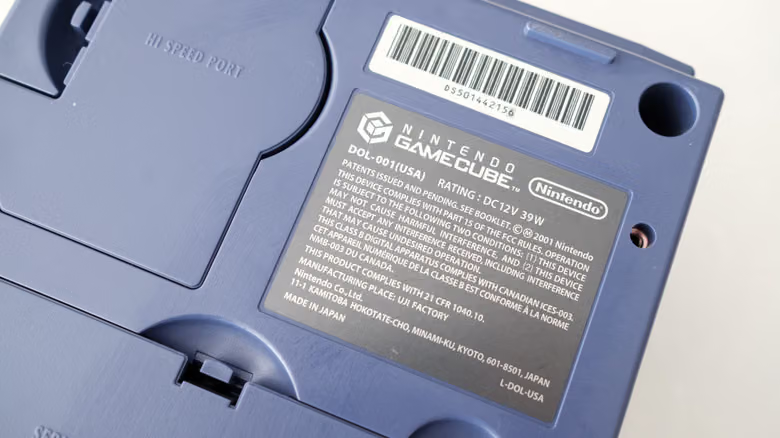
Here's the easy way to tell: if the back of your console has two sets of AV terminals and one of them is labeled "Digital AV Out," you've got a DOL-001. Or just flip the console over and check the label on the bottom — if it starts with DOL-001, you're set.
Once you've confirmed it's a DOL-001, all you need is an adapter and an HDMI cable. There are plenty of cheap options out there, but the Retro-Bit Prism HD Adapter is worth the recommendation. Like most GameCube HDMI adapters, it runs on the open-source software GC Video, but the Prism sets itself apart with a built-in USB-C port, so you can update the firmware without opening up the device. Two other solid picks are Insurrection Industries' Carby, or Bitfunx's option if you want to save some money. All three come with a remote that lets you pull up GC Video's on-screen menu to adjust the resolution, though depending on the adapter, you may need to supply your own HDMI cable.
Once everything's connected, for the best possible picture, check whether your game supports 480p output. Hold down the B button on the controller at startup, and a prompt will pop up asking "Enable progressive scan display?" — select Yes to turn on progressive scan. Some games also hide a native widescreen option buried in their settings menu.
If You've Got a DOL-101
No Digital AV Out means you'll need a different route: use a converter like the RetroTINK-2X Mini, plug in the composite cable that came with your GameCube, and then run an HDMI cable from the converter to your TV. RetroTINK also makes upscaling models, but they're pricey, and unless you've already got a whole shelf of retro consoles to hook up, it's probably not worth the cost just for this.
If that sounds like too much hassle, Nintendo Switch Online on the Switch 2 offers another path. Subscribe to the $50-a-year Expansion Pack plan, and you get access to a built-in library of GameCube games rendered at 900p — noticeably sharper than the original hardware. As of August 2026, the library includes nine titles: "The Wind Waker," "Soulcalibur II," "F-Zero GX," "Mario Smash Football," "Chibi-Robo!," "Luigi's Mansion," "Wario World," "Fire Emblem: Path of Radiance," and "Pokémon XD: Gale of Darkness." "Super Mario Sunshine" is set to join on August 13, and "Pokémon Battle Revolution" is planned for sometime later in 2026. Multiplayer titles like "F-Zero GX" also support four-player online play and button remapping.
If you've already got a stack of GameCube discs lying around, another option is the Dolphin emulator, run on a PC or laptop and then output to your TV. This emulator has been around for over two decades — it's free, stable, and packed with advanced features like resolution scaling and custom save states. Any Windows or Mac machine built in the last decade can handle it without trouble, and performance only becomes a concern once you start cranking up the advanced graphics settings.